Order allow,deny Deny from all Free Download Archives • Hacks for Data Analysis

Free Download

Automatically Unmerge Cells in Excel
Unmerge Cells in Excel

How to Automatically Unmerge Cells in Excel

Searching ways to Automatically Unmerge Cells in Excel? In this post I’ll show you a free Excel tool that will Unmerge all the cells and fill the blanks with values to help you analyze your data!

Free Download

Download now for free our Excel Tool used in the video below:

Unmerge Cells in Excel Automatically

Watch this video and learn how to use our tool to Unmerge all the cells automatically:

How does the tool work:

The tool allows you to quickly Unmerge all cells in Excel and fill the blanks with values after two simple steps:

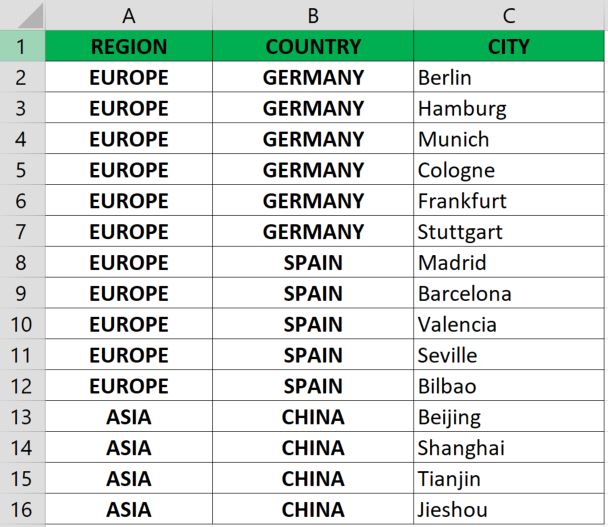
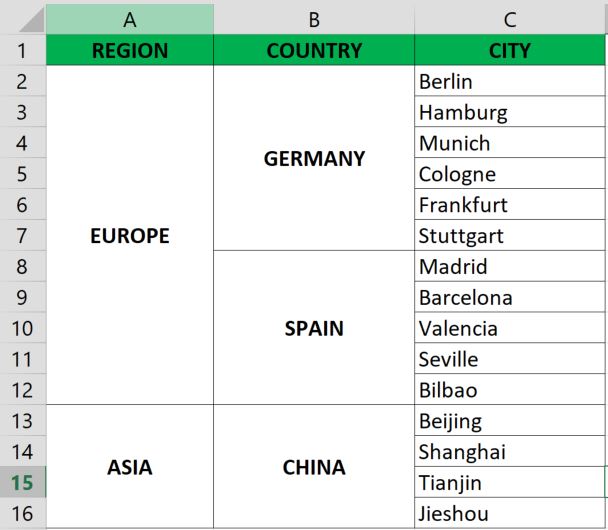
Merged Cells in Table before
Step 1: Paste the merged table into the tool
Run button to Unmerge and fill all cells
Step 2: Press the 'Run' button
Unmerged Cells in Table before
Your table has now been unmerged and the blanks filled with the correct cell values!

MET Tool

FREE EMAIL MARKETING TOOL IN EXCEL

Send multiple emails at once from Excel

Searching how to send multiple emails at once? Try this FREE email tool made in Excel and send hundreds of custom emails in just seconds!

Free Download: MET (Massive Email Tool)

Download now for FREE this email tool built in Excel and you will be able to send customized emails to several recipients in Outlook, and even add personalized attachments!

How to use it

Watch this video and learn how you can use today the Massive Email Tool to send multiple emails at once:

What can you do with the MET tool

What can you use it for

Some applications for this tool may be:

Paste your distribution list into this tool and create in just a few seconds customized emails targeted to your audience.

Include multiple, different and customized attachments to each email very quickly.

Sending individual emails to multiple recipients is an easy task tith the Massive Email Tool!

The options are endless!

The MET tool is very dynamic, so just be creative and find new ways of using this tool that can speed up your day-to-day work!

Download it now for free

How to Calculate Age in Excel

How to Calculate Age in Excel

How to Calculate Age (Days, Months or Years) in Excel

During this week we posted our first video from the Hack of the Week series where we showed you How to Calculate Age in Excel in Days, Months or Years. The trick shown in the video is a trick to combine Excel’s hidden function DATEDIF and IFERROR to create a new formula, ensuring a correct calculation of age in days, months or years without errors.


The DATEDIF function

Using the DATEDIF function on its own may result in a few errors and limitations, however our trick will allow you to use one single formula every time to calculate the correct age in days, months or years without errors.

Free Template and Video Tutorial showing How to Calculate Age in Excel


You can download now for free the Excel template with the formula demonstraded in the video below.

Other variations of the DATEDIF function

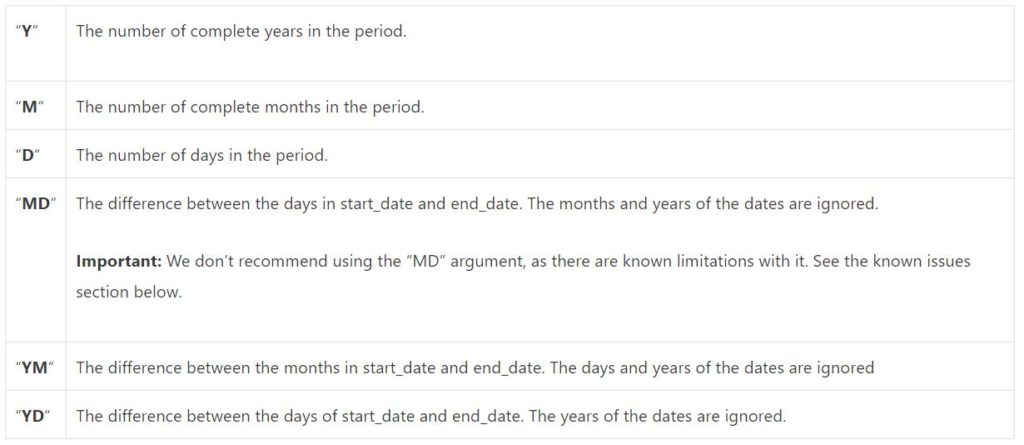
In addition to the example given in our video above, you can also try a few more variations of unit other than “Y“, “M” and “D” as detailed in Microsoft’s documentation and shown below:

DATEDIF(start_date,end_date,unit)

For instance, you can use =DATEDIF(“15-Jan-2019″,”1-Mar-2020″,”YM”) to calculate the number of complete months between 15 January and 1 March, which will result in 1 full month.

DATEDIF function variations of "unit" field from https://support.microsoft.com/en-us/office/datedif-function-25dba1a4-2812-480b-84dd-8b32a451b35c extracted on 5 August 2020